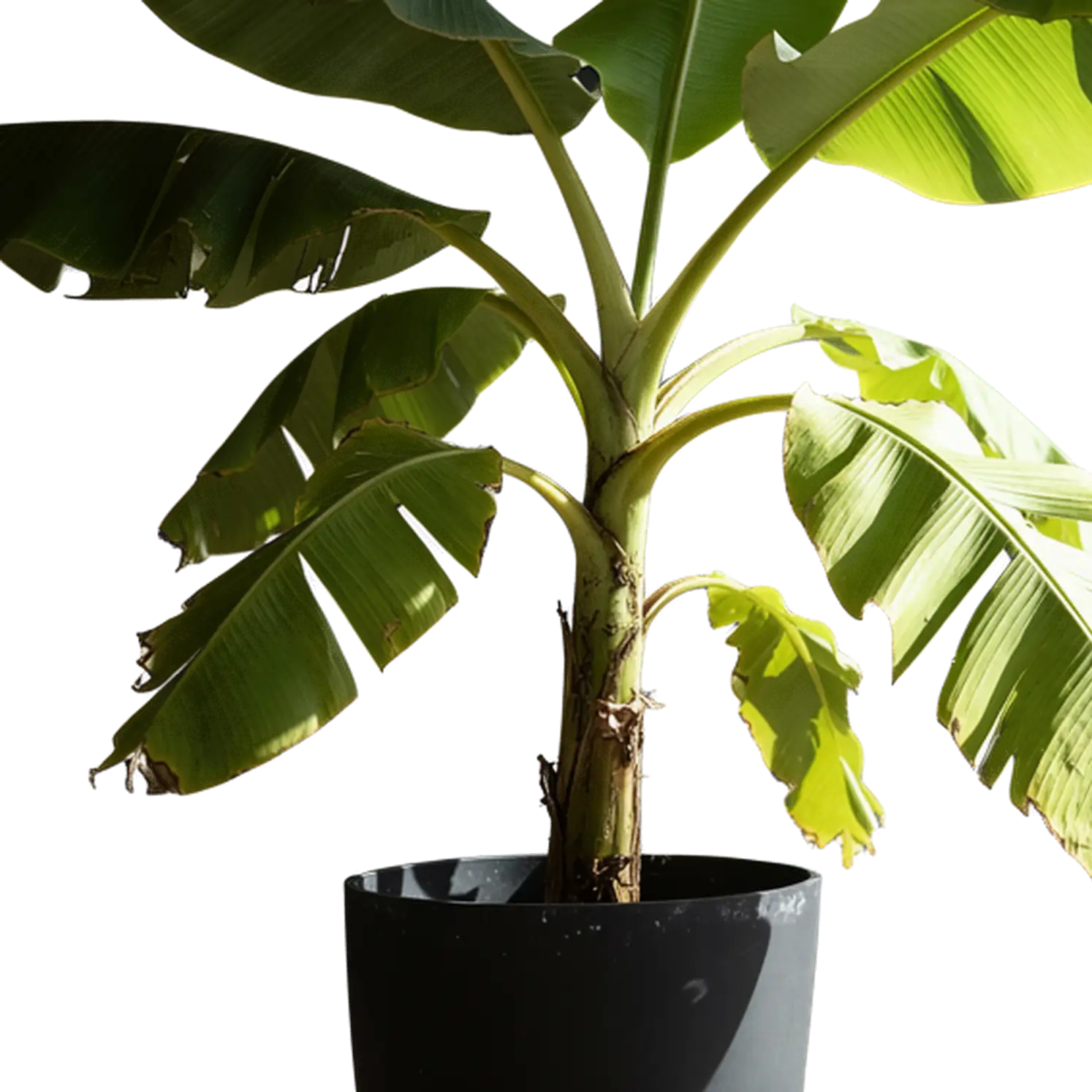
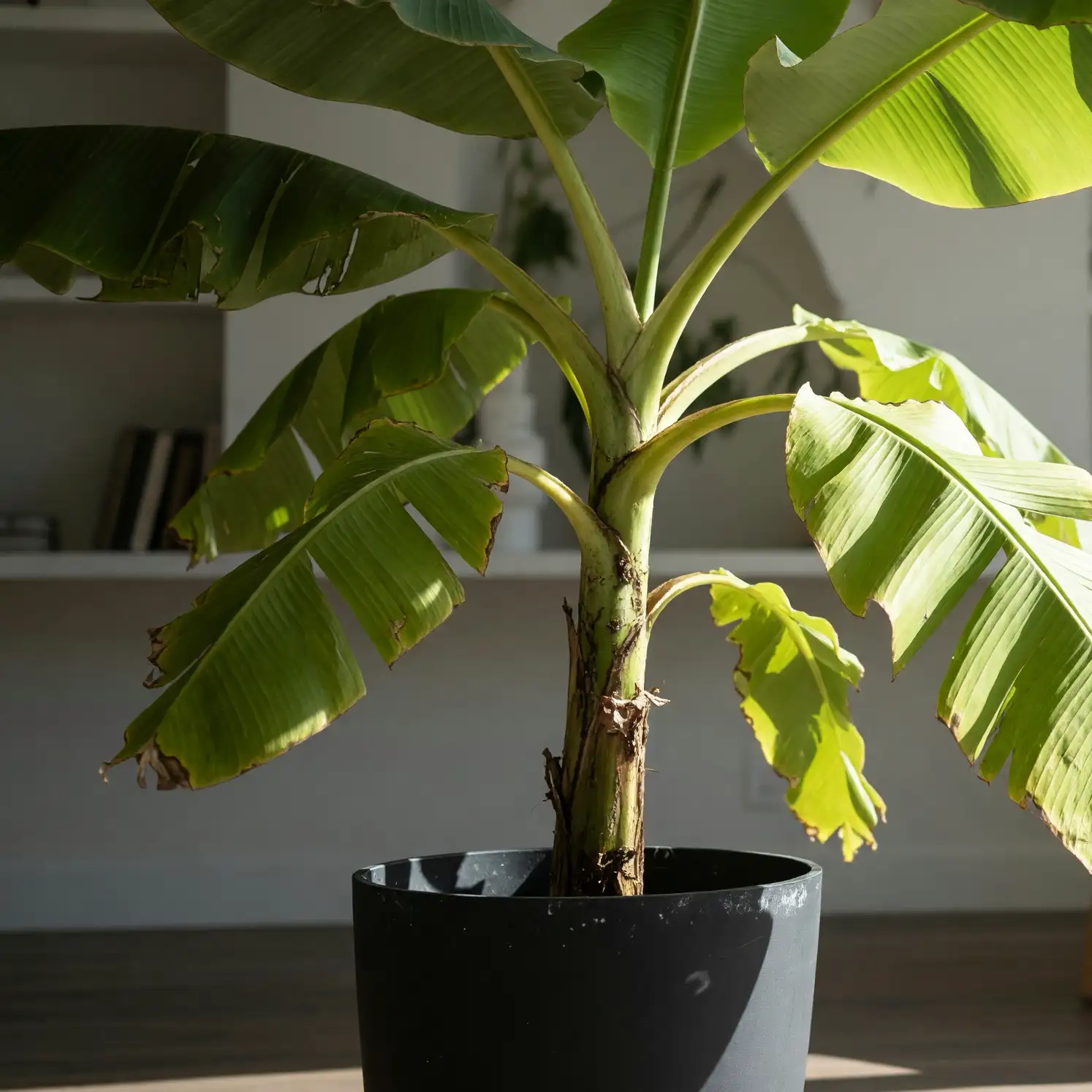
AI Background Remover for Your Images
Our AI background remover separates the subject in an existing image from its surroundings and saves it as a transparent PNG. Turn product photos, portraits, logos, and illustrations into cutouts you can place in a new design. Start with the image you want to keep and give it room to work anywhere.
Your Subject, Ready for a New Background
Use the background remover to turn a finished photo into a reusable design element. Keep the focus on the person, product, or artwork that matters.
Keep the Image You Chose
Work with your original subject, including its colors, shapes, and recognizable details. The AI background remover isolates the foreground so your photo can become part of a new composition.
Get a Transparent PNG
Download your cutout with transparent space around it. As a transparent background maker, the tool prepares your image for colored layouts, photo backdrops, and layered designs.
Work Through Several Images
Add multiple photos to the background remover and process them in one workspace. Review each result as it finishes, whether you are preparing a product collection or a set of portraits.
How to Remove the Background from an Image
Three steps take your picture from its original setting to a transparent cutout with our online background remover.
Choose Your Image
Upload a JPG, PNG, or WebP from your device. Start with a clear photo, a logo, or an illustration, and select several images when you have a set to prepare.
Remove the Background
Run the background remover. AI identifies the foreground and separates it from the backdrop, handling the cutout while you focus on the design.
Save Your Transparent Image
Preview the before-and-after result, then download the transparent PNG. Open it in your design editor to place the subject on a new background.
One Background Remover, More Ways to Start
From a photo on your phone to a logo file on your computer, choose the image that holds the subject you want to reuse.
Remove White Backgrounds
Separate a product, logo, or illustration from a white backdrop. Use the background remover to make the surrounding area transparent and place the subject over your brand colors.
Turn JPG Photos into Transparent PNGs
Give a JPG photo a transparent background by isolating its subject. The background remover exports the cutout as PNG, ready to layer over another image in your editor.
Use a PNG Background Remover
Already have a PNG with a solid background? Upload it to extract the logo, artwork, or object inside. Save the new cutout with transparency around the subject.
Remove Backgrounds from Everyday Photos
Bring a person, pet, or object out of a room, garden, or street scene. The AI background remover turns the foreground into a separate asset for your next layout.
Bring the Details into Your Next Design
A useful cutout carries the character of the source image. Give the background remover a clear original to work with, from the overall silhouette to its smallest details.
Hair and Fur
Use a sharply focused portrait or pet photo to give the AI visible strand detail. Let the soft outline become part of an avatar, profile card, or illustrated composition.
Glass and Delicate Materials
Turn glassware, delicate fabric, and decorative objects into assets for a new composition. Start with even lighting that shows the shape and material clearly.
Lettering and Logo Shapes
Choose a clear logo image with well-defined strokes and spaces between letters. Use the background remover to prepare the mark for a website header, presentation, or branded graphic.
Product Outlines and Small Parts
Keep handles, straps, leaves, and other defining parts visible in the source. A complete view gives your cutout a useful silhouette for catalogs and promotional layouts.
Remove a Background or Generate a New Image?
Choose the background remover for a subject you already have. Choose transparent image generation when your next design calls for a new graphic.
| Your Goal | Background Remover | Transparent Image Maker |
|---|---|---|
| Start with | A photo, logo, or illustration to cut out | A written idea or a reference picture |
| Create | A transparent cutout of the existing subject | A newly generated graphic with a transparent background |
| Focus on | The appearance and detail of your source image | Your chosen subject, style, and creative direction |
| Use for | Product photos, portraits, logos, and existing artwork | New stickers, icons, characters, and illustrations |
Have the right image already? Use the background remover above. Have a new graphic in mind? Explore our AI PNG generator. For an overview of both image and text creation, visit PNG Maker.
Put Your Cutouts to Work
Use the background remover once, then bring the same subject into several layouts. Transparent images give you more freedom to arrange a finished design.
Product Listings and Campaigns
Prepare product cutouts for shop pages, collection banners, and seasonal offers. Place different items on a shared background in your editor for a coordinated catalog.
Profile Cards and Thumbnails
Make a person the focus of a team page, event poster, or video thumbnail. Reuse the portrait across designs with different colors, headlines, and proportions.
Logos Across Your Brand
Remove the background from a logo and carry the mark into presentations, websites, and packaging mockups. A transparent version lets the layout show through the surrounding space.
Collages and Visual Compositions
Combine cutout people, pets, and objects with photos or illustrations in your editor. The background remover gives you individual elements to arrange around a headline or focal point.
Make an Image Transparent for Your Next Design
Take your result from the background remover into the place it will be seen. A few simple choices help it fit the finished layout.
Choose the Background for the Design
Place your PNG over a brand color, photograph, or pattern in your editor. Preview light and dark options to find a setting that brings the subject forward.
Size the Subject for Its Purpose
Leave room for a product name on a listing card or a headline beside a portrait. View the design at its final size to balance the cutout with the surrounding content.
Keep a Transparent Source File
Save the PNG from the background remover as your reusable source. Make separate copies for different layouts so the transparent original is ready for your next project.
Background Remover FAQ
Find the right starting image, remove its background, and use the transparent result.
Keep Creating with Your Images
Create new transparent artwork, build a complete scene, or explore a 3D version of an isolated object.
Give Your Image a Transparent Background
Keep the subject and open up new design possibilities. Use our background remover to prepare your next product photo, portrait, or logo.
Remove Background