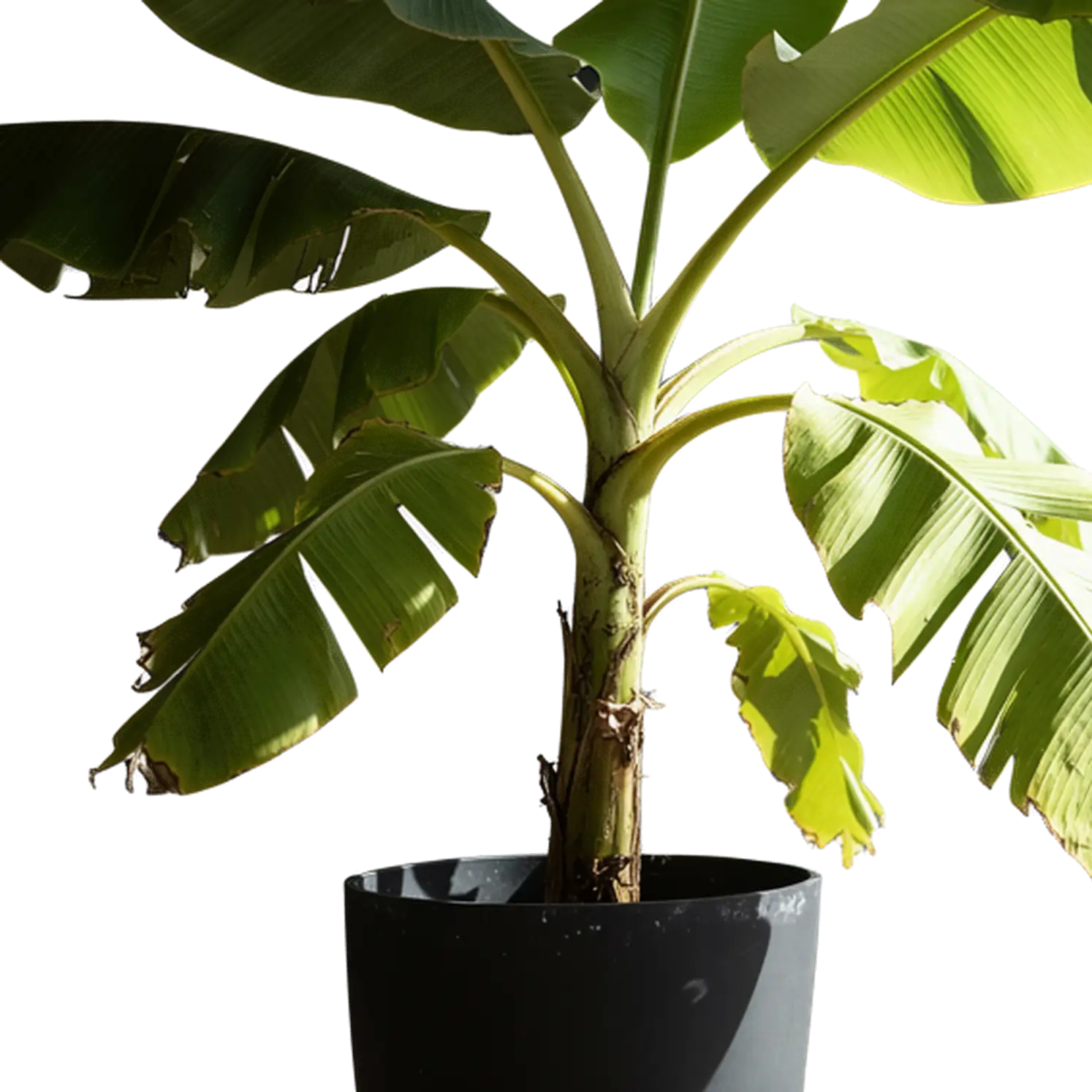
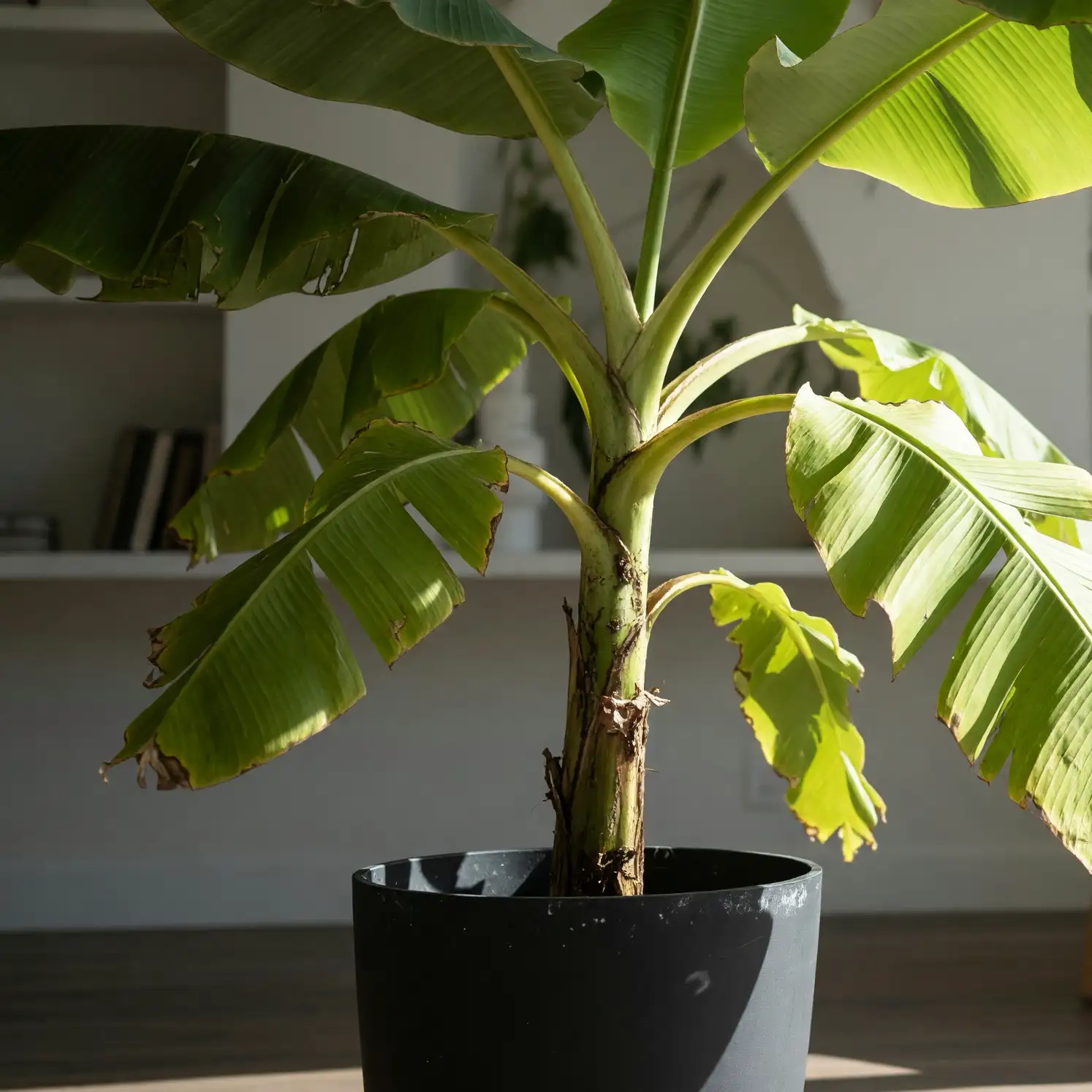
AI Transparent PNG Generator
This AI PNG generator creates new images with a transparent background from a text description or a reference image. Shape stickers, icons, characters, and illustrations with your choice of proportions and resolution. Start with words to invent an asset, or use a picture to guide a new transparent version.
Generate PNG Images from Text or a Reference
A visual idea can begin as a few words or a picture. Give the PNG generator your starting point and turn it into a transparent asset.
Describe Your Next Graphic
Tell the AI PNG generator what to draw: a cheerful mascot, a botanical illustration, or a collection of decorative shapes. Describe the subject and choose a style, from flat color to watercolor or a dimensional look. Your words guide a new image with a transparent background.
Create from a Reference Image
Bring a photo, sketch, or illustration to the PNG generator. Its subject, colors, and arrangement provide a visual starting point for a newly generated transparent version. Select the proportions and output resolution to prepare the asset for your design.
How to Use the AI PNG Generator
Decide what you want to create, give it a direction, and generate a PNG you can bring into your design.
Pick Text or Image
In the PNG generator above, choose Create from Text for a written idea or Remake Image for a picture you want to use as a reference.
Add Your Creative Input
Describe your subject and its visual style in text mode. In image mode, upload a photo, sketch, or illustration with the subject clearly visible.
Set the Canvas
Choose square, portrait, or landscape proportions, then select 1K, 2K, or 4K output. Match the canvas to the graphic you plan to create.
Generate Your PNG
Let the PNG generator create the asset, preview the result, and download your chosen image. Bring the transparent PNG into your editor to compose the finished design.
Frame the Graphic Before You Generate
The canvas helps define the composition. Choose proportions in the PNG generator that give your subject room to take shape.
Square for Icons and Stickers
Give a compact subject balanced space on all sides. A centered shape works well for an app icon concept, sticker, badge, or individual game item.
Portrait for Characters
Use a taller canvas for a full-body character, upright object, or long botanical illustration. In text mode, describe the pose and how much of the subject to show.
Landscape for Decorative Elements
Arrange a horizontal garland, leafy branch, or group of illustrated objects across a wide canvas. Plan how the asset will sit above or beside your other content.
For text generation, describe the space around the subject as well as the subject itself. A little breathing room helps a sticker sit inside a card; an off-center arrangement can leave room for a headline in your finished design.
Give Your PNG Generator a Clear Creative Direction
Build your description around a few visual decisions. A clear subject, style, viewpoint, and composition help the AI PNG generator turn an idea into a useful asset.
Name the Subject
Start with what the PNG generator should draw, then add a defining detail: the character's expression, the object's shape, or the plant's type. Make the focal point clear.
Choose a Visual Style
Set a direction such as flat illustration, paper cutout, watercolor, or soft clay. Add a color palette to give the graphic a recognizable look.
Set the Viewing Angle
Choose a front, side, top-down, or three-quarter view. A matching viewpoint helps separate icons and objects look at home in the same design.
Describe Light and Texture
Use concrete details such as matte ceramic, woven fabric, brushed metal, or soft side lighting. Pick the surface and light qualities that matter to your idea.
Compose the Asset
Tell the PNG generator whether to show a centered object, a full-body pose, or a balanced group. Leave transparent space where you want flexibility in the final layout.
Develop one idea at a time. Keep the subject and palette, then change the angle or material to explore a new direction. For a matching set, reuse the same style description and framing choices across your PNG generator requests.
Use a Reference in the PNG Generator
A reference image gives the PNG generator visual direction. Choose a picture that clearly shows the subject and the details you want the new artwork to draw from.
What Makes a Useful Reference
- Show the full object or character, including accessories that belong in the new asset.
- Choose a view that makes the silhouette and arrangement easy to understand.
- Use an image with visible colors and textures to establish the visual direction.
- For a group of objects, pick a composition that clearly shows how they fit together.
Already Have the Subject You Need?
For a ready-made photo, logo, or product shot, use Background Remover to isolate the existing subject. Use the PNG generator to create new artwork from a description or a visual reference.
Use Background RemoverPNG Generator or Background Remover?
Choose by the asset you want to make. The PNG generator offers text and reference-image creation; background removal starts with a finished image.
| Workflow | Start with | Create or prepare | Choose it for |
|---|---|---|---|
| Create from Text | An idea described in words | A new transparent graphic shaped by your prompt | Inventing a sticker, icon, character, or decorative asset |
| Remake Image | A photo, sketch, or illustration | A new transparent version guided by the reference | Developing an existing visual idea into transparent artwork |
| Background Remover | A picture with a subject to cut out | The existing subject isolated from its background | Preparing a product photo, portrait, logo, or other existing image |
Use text to invent, a reference to inspire, and background removal to prepare a subject you already have.
PNG Generator with 1K, 2K, and 4K Output
Set the output resolution in the PNG generator before creating your asset. Think about the size it will occupy in the finished design.
1K for Exploring Ideas
Develop a concept, compare visual directions, or create a compact graphic for a small placement. Use this stage to settle on the subject and style.
2K for Everyday Layouts
Create a versatile source image for presentation illustrations, website graphics, social designs, and other compositions that reuse an asset at different sizes.
4K for Larger Artwork
Give a large hero graphic, detailed illustration, or prominent campaign element more pixels to work with in the finished composition.
Match resolution and framing across related assets. When using the PNG generator for a set, keep similar subject sizes inside each canvas so the graphics are easier to arrange together.
Build a Collection with a Consistent Look
A transparent PNG generator helps turn a visual direction into individual design elements. Plan a few shared rules, then develop each subject.
Campaign Graphics
Choose a palette and material for a seasonal theme, then use the PNG generator to explore related objects. Keep their lighting and angle aligned so each graphic works across the same campaign.
Icons and Game Items
Define a viewing angle, outline style, and amount of space around each object. Repeat those choices when creating menu illustrations, inventory concepts, or a family of interface graphics.
Characters and Stickers
Explore a character's pose, expression, or accessories in text mode. Give the PNG generator a clear visual description and develop transparent artwork for sticker sheets, story panels, or social graphics.
Illustrated Overlays
Create flowers, leaves, ribbon shapes, or decorative borders that frame a composition. Match the artwork's perspective and colors to the photo, slide, or video layout where you plan to place it.
AI PNG Generator FAQ
Practical answers about prompts, reference images, and creating a collection of transparent graphics.
Take Your Artwork into the Next Project
Prepare an existing subject, create a complete scene around your idea, or explore a three-dimensional version of a character or object.
Create Your Next Asset with the PNG Generator
Give the AI PNG generator a description or a reference image. Set the shape, choose the resolution, and create transparent artwork with a direction of your own.
Create with PNG Generator