0 / 20000
AI Image Generator for Your Next Big Idea
Our AI image generator creates complete pictures from text prompts or reference images. Make photographs, illustrations, and imagined scenes for campaigns, stories, and everyday creative projects. Describe the picture, shape its style, and explore different versions in one workspace.
An AI Image Generator for Words, Photos, and Ideas
Start with a written idea, a favorite picture, or a visual direction. The AI image generator builds the scene around your brief.
Turn a Description into a Picture
Use the AI image generator from text to create a scene from scratch. Describe the subject, setting, and mood, then bring the idea into view.
Give a Reference Image a New Direction
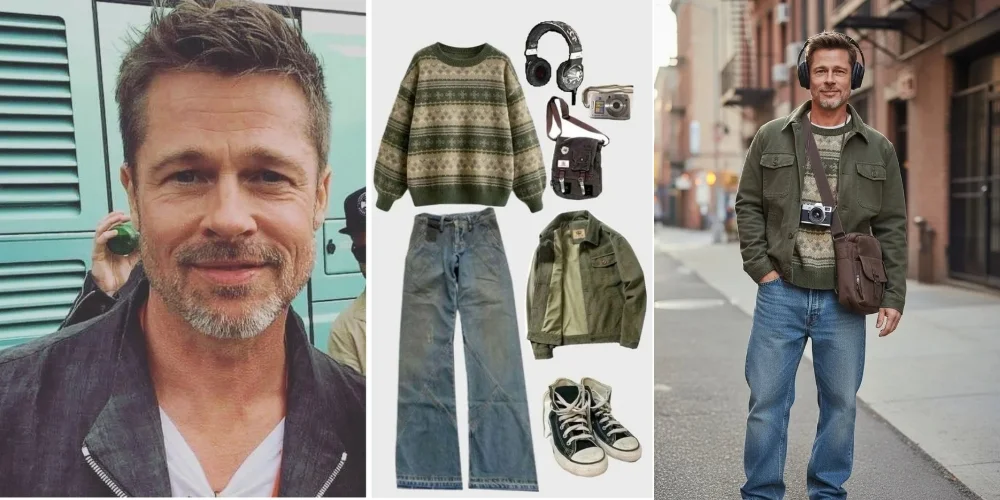
Use the AI image generator from image inputs to explore a new setting, visual style, or composition. Your prompt explains how to reinterpret the reference.
Shape the Look of Your Image
Guide the AI image generator with style, color, lighting, and composition controls. Build a warm photographic scene or a bold illustration around the same idea.
Explore More Than One Possibility
Create several versions with the AI image generator. Compare framing and atmosphere, then develop the direction that fits your project.
Choose the Starting Point That Fits Your Idea
Your starting point
An idea you can describe
Your next move
Start with text to image. Tell the AI image generator what should appear and how the finished picture should feel.
Your starting point
A photo or illustration to build on
Your next move
Start with image to image AI. Add the reference and describe the features to carry forward and the changes to explore.
Your starting point
A loose visual direction
Your next move
Choose a style, color palette, and image shape. Use those decisions to turn a broad concept into a clear creative brief.
Plan Your Image with the AI Image Generator
Use this quick guide to brief the AI image generator. Match the starting material, composition, and finishing detail to the image you want.
| Create | Start with | Describe | Framing | Detail to add | Use it for |
|---|---|---|---|---|---|
| Lifestyle photo | Text or a photo | Subject and surroundings | Portrait or landscape | Natural light and texture | Editorial and social posts |
| Product scene | Product reference | Setting and materials | Square or landscape | Surface and shadows | Campaign visuals |
| Story illustration | Text or character art | Action and atmosphere | Match the story layout | Palette and drawing style | Covers and storyboards |
| Poster concept | A campaign idea | Focal point and headline | Portrait | Space around the subject | Events and promotions |
| Fantasy environment | A scene description | Scale and perspective | Landscape | Foreground and distance | Games and concept art |
| Website hero image | A page concept | Main subject and mood | Wide landscape | Open space for page copy | Landing pages |
Small Choices That Give an Image Direction
For a photographic look
Name the light source, viewing angle, and surface textures you want the AI photo generator to render.
For illustration
Describe the medium, line quality, and palette. Give the AI image generator a visual style to work toward.
For a recognizable subject
Upload a clear reference and tell the AI image generator which defining features to carry into the new picture.
For a bold cover
Choose one focal point and a strong color relationship. Plan the composition around the headline area.
For a coordinated set
Keep the same style description and references while changing the action, setting, or camera angle.
For a new visual direction
Keep the subject and change one major choice, such as lighting or medium, to compare the difference.
An AI Picture Generator for Every Creative Direction
Explore a photographic or illustrated direction with the AI image generator. Shape the look through texture, light, color, and composition.
Photographic Images
Photography · Light and texture
Create a portrait, tabletop scene, or atmospheric landscape with the AI image generator. Describe the light and the texture of the surfaces.
Create: Lifestyle imagery and editorial scenes
Try this: Soft window light, eye-level framing, natural textures
Product Visuals
Design · Materials and setting
Give the AI image generator a product reference and a new setting. Explore seasonal displays, studio arrangements, and campaign concepts.
Create: Product storytelling and promotional concepts
Try this: A contrasting backdrop with a simple supporting prop
Illustrated Stories
Illustration · Color and character
Create a story, article, or presentation scene. Direct the AI image generator toward watercolor, ink, painterly, or graphic styles.
Create: Story scenes and editorial illustrations
Try this: A limited palette and a clearly described action
Poster Concepts
Composition · Focus and hierarchy
Build a striking focal image with the AI image generator. Place the subject, plan a headline area, and describe the atmosphere.
Create: Event artwork and promotional visuals
Try this: A central subject with open space above it
Imagined Worlds
Concept art · Scale and atmosphere
Create imagined places with the AI image generator. Describe foreground shapes, distant structures, weather, and a distinctive sense of scale.
Create: Game environments and worldbuilding
Try this: A small foreground figure against a vast landscape
Website Visuals
Web design · Space and balance
Create an image that belongs beside your page content. Give the AI image generator a palette, focal point, and space for your layout.
Create: Website headers and presentation covers
Try this: The main subject on one side with a calm background
Give Your AI Image Generator a Clear Brief
The details you choose help turn a general request into a picture with a purpose.
Words inside the image
Write the exact headline or label in quotation marks. Describe its position and visual style so the AI image generator can incorporate it into the composition.
Photographic atmosphere
For realistic AI photos, describe observable details: a soft reflection, directional daylight, woven fabric, or the distance between the subject and camera.
A shared visual identity
Reuse a reference, palette, and style description across related pictures. Keep those decisions steady as you explore different scenes.
Useful variations
Generate alternatives around one clear idea. Compare the mood and composition, then refine the version that communicates it best.
Composition that fits
Choose the image shape before generating. Describe what belongs in the foreground, what sits behind it, and where the layout needs breathing room.
Use the AI image generator controls for image shape and output size, and the prompt for the creative direction.
An AI Image Generator for Real Creative Projects
From a launch campaign to a new story, connect the picture you generate to the job it needs to do.
Campaigns with a Clear Focal Point
The project: Event posters, announcement graphics, and promotional covers.
The creative goal: Use the AI image generator to build a visual around the message of the campaign.
Start here: Describe the subject, palette, headline area, and image shape.
Develop it: Compare a bold color treatment with a softer version of the same composition.
Products in a New Setting
The project: Seasonal concepts, product stories, and lifestyle campaign imagery.
The creative goal: Show a product idea in an environment that communicates its mood and use.
Start here: Add a reference image and describe the surface, surroundings, and light.
Develop it: Explore a studio arrangement and a lifestyle scene in the AI image generator.
Stories with a Visual Thread
The project: Character introductions, story scenes, and storyboard concepts.
The creative goal: Give each image a role in the story while carrying a shared look through the set.
Start here: Use a character reference, then describe the scene, action, and camera distance.
Develop it: Reuse the reference in the AI image generator as the setting changes.
Editorial Images with Atmosphere
The project: Article headers, presentation covers, and visual storytelling.
The creative goal: Use an AI photo generator to make an abstract idea visible through a complete scene.
Start here: Describe the setting, viewpoint, light, and feeling you want to convey.
Develop it: Explore a close detail and a wider view to find the strongest illustration of the idea.
Take Your Image from First Draft to Finished Direction
Refine the creative decisions that matter most. Each pass through the AI image generator can answer a specific design question.
Make the subject the focal point
Next step: Describe its position, size, and contrast against the surroundings. Use a simpler setting to give it more visual weight.
Give the image a stronger mood
Next step: Change the lighting, weather, or palette while keeping the subject. Compare how each version tells the story.
Carry a look across several images
Next step: Keep your reference image and style description together. Reuse both when creating the next scene.
Prepare space for a headline
Next step: Ask the AI image generator for an uncluttered area where the text will sit. Match that space to the planned layout.
Choose the detail level for delivery
Next step: Set the output resolution in the tool. Create high-resolution images up to 4K for larger layouts and room to crop.
Write a Prompt That Describes the Picture You Want
A useful prompt gives the AI image generator a subject, a visual direction, and a composition. Add the details that make this picture yours.
Build the Scene in a Clear Order
Describe the main subject, its action or setting, the visual style, and the framing. Add light, color, and material details where they matter to the result.
"Subject and action → surroundings → visual style → light and color → camera angle and composition"
Turn a Starting Idea into a Creative Brief
Starting idea
"A bicycle scene"
Creative direction
"A city bicycle as the focal point; a bakery setting for context; morning light for warmth; eye-level framing for an everyday feel."
A developed brief gives each visual choice a purpose. Tell the AI image generator what should draw attention, what sets the mood, and how the viewer should see the scene.
Develop an Image in Three Steps
- 1Create the scene: give the AI image generator the subject, setting, and visual style.
- 2Refine the direction: reuse your chosen image as a reference and describe the change you want.
- 3Prepare the result: choose the framing and output size that suit the final project, then download your image.
Find a Visual Direction Worth Exploring
- For a portrait, choose the relationship between the person and their surroundings: an intimate close-up or a wider environmental view.
- For an illustration, decide whether the scene should explain an idea, tell a story, or establish a mood. Let that purpose guide the focal point.
- For a product reference, explore how a different surface and setting can suggest a season, occasion, or way of using the item.
- For a website header, plan the relationship between the image and the page copy. Use subject placement to lead the eye toward the message.
How to Use the AI Image Generator
Use the AI image generator at the top of this page for text to image and reference-based creation.
Choose Your Starting Point
Select text to image for a new idea, or image to image to upload a reference. Choose an image model in the tool.
Describe and Shape the Image
Tell the AI image generator what to create. Choose the style, aspect ratio, output size, and number of images for your project.
Generate, Explore, and Download
Review your AI-generated images, develop a promising direction with a reference, and download the version you want to use.
AI Image Generator FAQ
Practical answers about text prompts, reference images, styles, and creative workflows.
Bring Your Image into a Transparent Design
Create the scene here, then use the dedicated tools below to make transparent graphics or cut out a subject.
Create Your Next Image with AI
Give your idea a setting, a style, and a point of view. Start with text or a reference in the AI image generator and find the picture that brings it to life.